How to update your schedule and send subs a look-ahead every week
A schedule only helps if it's current. This weekly routine takes a few minutes in LookAhead: mark progress, log what got in the way, print the next three weeks for the field, and share a link with everyone else.
1. Update progress
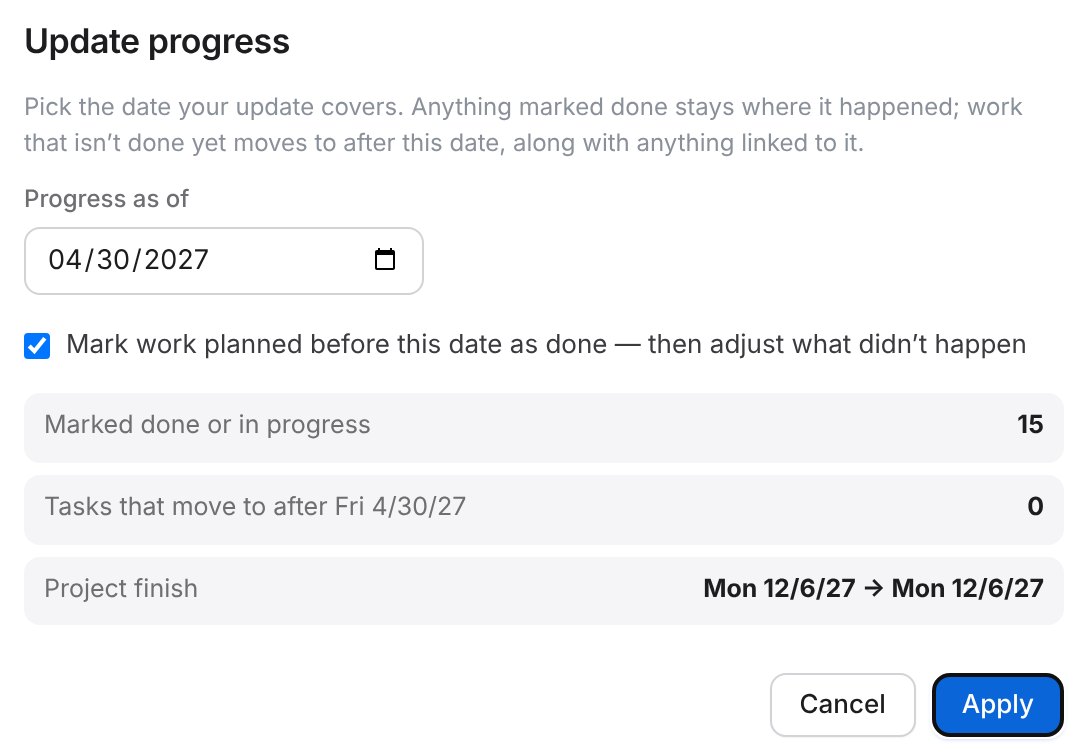
Click Progress and pick the date your update covers, usually the end of the week. LookAhead marks work planned before that date as done, and you adjust whatever didn't happen. Unfinished work, and everything linked to it, moves to after that date. You see what it does to the finish date before you apply it.
2. Log roadblocks and delays
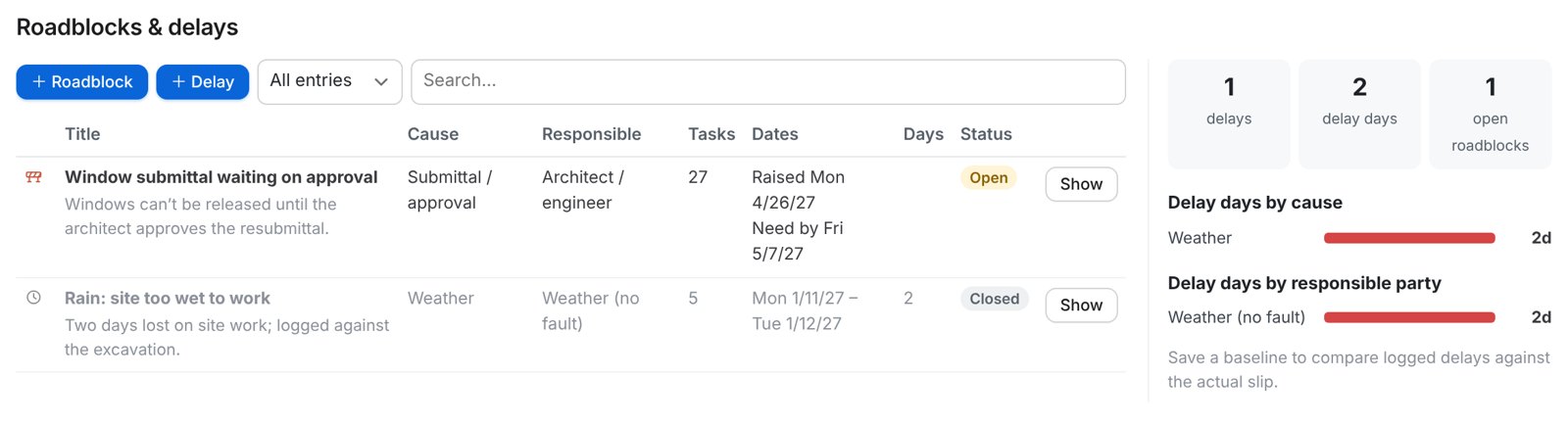
Click Log to record what got in the way. A roadblock is something that could hold up work, like an unanswered RFI or a submittal waiting on approval; give it an owner and a need-by date. A delay is something that already did, like weather or a failed inspection. Delay days add up by cause and by responsible party, which helps when you need to show why the job moved.
3. Print the look-ahead for the field
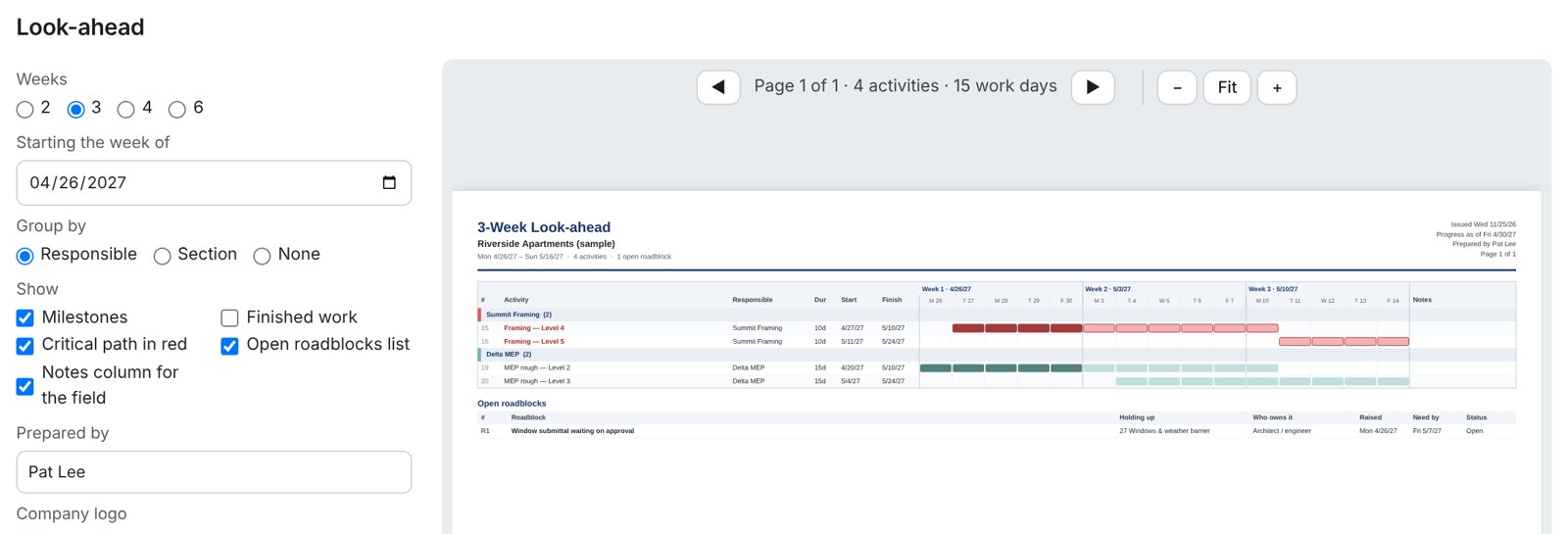
Click Look-ahead. Pick two, three, four or six weeks, group it by responsible party so each sub sees their own work together, and download the PDF. Critical work shows in red, and open roadblocks print underneath with who owns them and when they're needed. Add a notes column for the field and your company logo.
Want the background on look-aheads first? Read what a 3-week look-ahead is and how to run one.
4. Share a view-only link
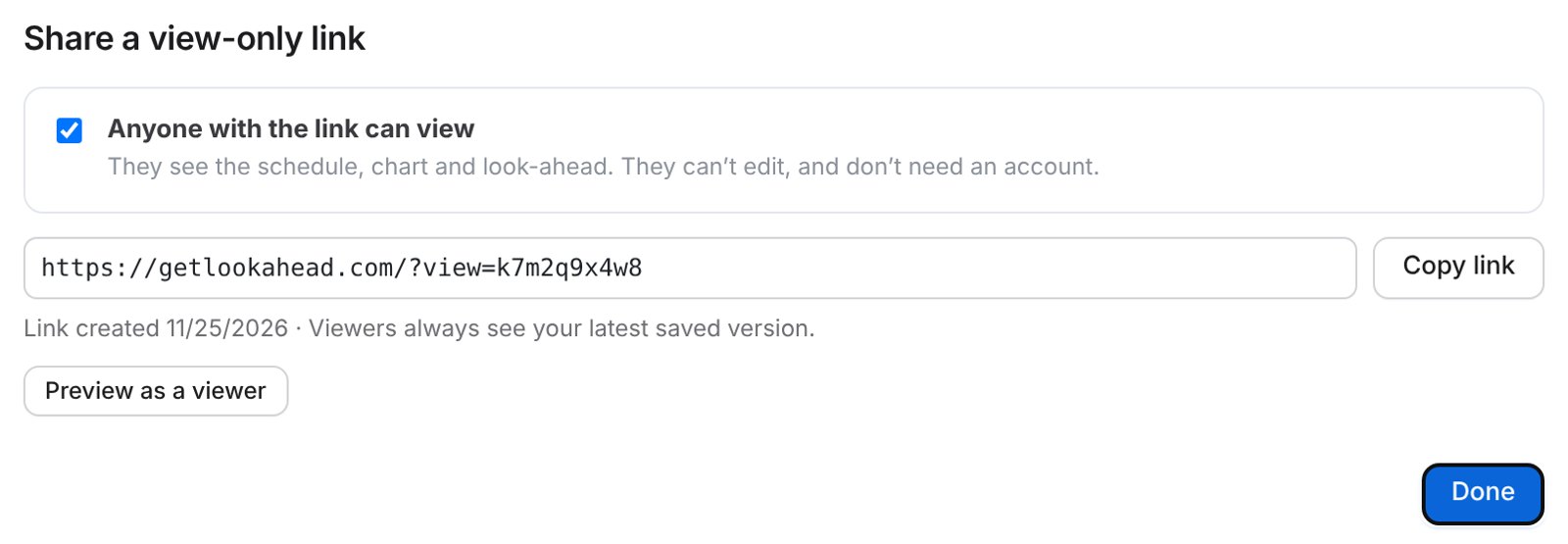
Click Share and turn on the link. Subs, owners and anyone else can open the schedule, chart and look-ahead in their browser without an account, and they can't change anything. The link always shows your latest saved version, so you never re-send files.
Build a schedule from a template in about 10 minutes, then keep it current with a few minutes a week. Free for up to three schedules.
Start a schedule free